How to find and upgrade SharePoint .agent files before they stop working in March 2027
SharePoint and OneDrive agents saved as .agent files stop responding after March 2027. This guide covers the inventory with the agent registry and the Agent Insights report, choosing a path for each agent, and doing the upgrade.
Message Center post MC1511052, published on 16 October 2026, sets the end date for the SharePoint agents most organisations created over the last two years. From mid November 2026, new agents built from SharePoint or OneDrive are created with Microsoft Copilot Agent Builder and no longer saved as .agent files. Existing .agent files keep working until the end of March 2027, after which they stop responding everywhere, in Teams chats, in the Copilot app and in SharePoint itself.
Microsoft will not upgrade agents for you. Someone has to find each file, decide what it should become and move it. If your users built dozens of these, that takes longer than five months sounds. This is the process I would follow.
Before you start
Roles. You need SharePoint administrator to run the Agent Insights report, and AI Administrator (or Global Administrator in an emergency) to work in the agent registry in the Microsoft 365 admin center. The person upgrading a given agent needs edit permission on the .agent file, the ability to share agents, and page edit rights if the agent will go onto a page with the Agent Chat web part.
Licences. Users need a Microsoft Copilot licence to use Copilot in SharePoint, including skills. The SharePoint Agents pay as you go meter only applies to .agent files. Upgraded agents follow the Copilot app licensing model, and use by unlicensed people is billed under Copilot app pay as you go. If you rely on pay as you go today, confirm that billing is set up for the Copilot app before you upgrade anything.
Tools. The SharePoint Online Management Shell, connected to your admin URL.
Connect-SPOService -Url https://<tenant>-admin.sharepoint.com
Sharing. Make sure the people who own agents are allowed to share agents. Upgraded agents use Agent Builder sharing, not SharePoint permissions, and SharePoint groups cannot be used as a sharing target.
What stops working after March 2027
It helps to know exactly what breaks so you can prioritise. After the cut off, .agent files added to Teams chats or channels stop responding, and so do .agent files used in the Copilot app. Opening a .agent file in SharePoint or OneDrive shows an upgrade required message. The agents icon disappears from SharePoint navigation, the Agent Link web part and immersive viewer stop working, and the site main agent setting is removed because Copilot becomes the only main agent on a site.
Step 1. Build the inventory
- Open the agent registry in the Microsoft 365 admin center. Agents > All agents > Registry
- Select the Channel filter and choose SharePoint. The list now shows SharePoint agents, and the tiles at the top still show the tenant totals. Select Export and choose Filtered agents to save the list as a file.
- Open the SharePoint admin center and create an Agent Insights report. Reports > Agent Insights > Create a report Enter a name, set Report duration to 28 days and select Create and run. Watch the Status column until the report completes. In a large tenant it can take up to 48 hours.
- If you prefer PowerShell, or want more than the top 100 rows the portal shows, start and download the report from the shell.
Start-SPOCopilotAgentInsightsReport -ReportPeriodInDays 28
Get-SPOCopilotAgentInsightsReport
The second command lists your reports and their IDs. Once the 28 day report shows as complete, download the full data.
Get-SPOCopilotAgentInsightsReport -ReportId <id> -Action Download
Get-SPOCopilotAgentInsightsReport -ReportId <id> -Content TopSites
The default content, CopilotAgentsOnSites, lists every agent on every site, up to a million rows in the download. TopSites gives the 100 sites with the most agents, which is where to start talking to site owners. If you copy the cmdlets from the Learn page, retype the dash before ReportId, because the page shows it as a typographic dash that PowerShell will not accept.
- If you do not have SharePoint Advanced Management, the report needs audit data collection first.
Start-SPOAuditDataCollectionForActivityInsights
Get-SPOAuditDataCollectionStatusForActivityInsights
Wait until the status reads InProgress, roughly 24 hours, before you create the report.
- Save the legacy usage numbers now. Usage history does not move to the upgraded agent, so the only record of how busy each agent was is what you capture before the change.
Step 2. Choose a path for each agent
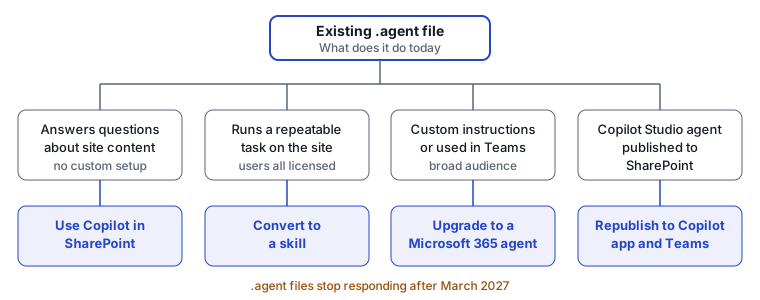
- Rank the inventory. Start with agents that have high usage, broad audiences, custom instructions, pay as you go use, Teams distribution or a prominent place on a site home page.
- Send each owner or site owner the list of their agents and ask them to choose one of the four paths in the diagram. The site owner, creator or agent owner makes the call.
Step 3. Carry out the upgrade
Simple question and answer agents. These are agents that only answer questions about the site.
- On the site, open the site settings and the AI section. Settings > Site AI Set Main agent to Copilot. Test a few questions in the side pane, then delete the .agent file.
Agents that run a repeatable task. These suit a skill, as long as everyone using them has a Copilot licence and nobody needs them in Teams or the Copilot app.
- Open Copilot in SharePoint on the site and prompt the
convert-agent-file-to-skillskill with the .agent file. Choose a site skill or a personal skill when asked. The original .agent file is moved to the skill location as a backup. Add a Button web part to the page if users need a visible way to start it.
Agents with custom instructions, or used in Teams. These become Microsoft 365 agents.
- Open the .agent file for editing. An upgrade banner appears at the top.
- Select Upgrade to Microsoft 365 agent and confirm in the dialog. The agent opens in Agent Builder. From now on all edits happen there and the old file can no longer be edited.
- Share the upgraded agent. If the original was shared with the whole organisation, that carries over. Otherwise the upgraded agent is private until you share it, so share it again with the right people now.
- If the agent should sit on a page, add the Agent Chat web part, and only then use Move file to Recycle bin on the old file. The Agent Chat web part is listed by Microsoft as coming soon, so check it is available to you before you delete anything.
- In every Teams chat or channel that used the old agent, remove it and post the sharing link for the new one. Upgraded agents are not carried across automatically.
Copilot Studio agents published to SharePoint. These do not need rebuilding.
- Publish the agent to the Microsoft Copilot app and Teams channel in Copilot Studio, then place it on pages with the Agent Chat web part.
Verify it worked
- Return to the agent registry with the SharePoint channel filter and export again. Compare it with the first export and mark off each agent you have dealt with. Whatever is left with no decision is your outstanding list, and that list is what you report on each month until March 2027.
- Ask a user who is not the owner to open the upgraded agent and ask a question about site content. Access to the agent does not grant access to the underlying files, so if they get thin answers, check they can open the source content.
- Rerun the Agent Insights report after a week. You can only rerun a report 24 hours after the last one, and a new report replaces the old one for the same duration, so download the previous one first.
Troubleshooting
| Symptom | Likely cause | What to do |
|---|---|---|
| No upgrade banner on the .agent file | The rollout has not reached the tenant yet | The upgrade option arrives from mid November 2026, wait and retry |
| Upgraded agent not visible to colleagues | Agent became private on upgrade | Share it in Agent Builder, SharePoint groups are not supported as a target |
| Agent answers but misses content | User lacks access to the source files | Grant access to the content, agent access does not include it |
| Agent gone from a Teams channel | Teams keeps the old .agent reference | Remove the old agent and post the new sharing link |
| Agent Insights cmdlet fails with a parameter error | Dash copied from the web page | Retype the hyphen before ReportId |
| Report status stays in progress | Large tenant | Allow up to 48 hours |
| Upgraded agent cannot be set as the main agent | By design | Only Copilot can be the main agent on a site after the change |
| Blocking an agent in the admin center has no effect in SharePoint | Blocking applies to Copilot Chat only today | Use restricted access control or restricted content discovery on the site |
The gotcha that bites is usage history. People upgrade the busy agents first, the dashboards reset to zero, and three months later nobody can show which agents were worth keeping. Download the reports before anyone clicks the upgrade button.