How to roll out apps and policies in rings with Intune deployments
Intune can now release a Win32 app or a policy to one group at a time on a schedule. A step by step guide to deployment plans, plus the limits you need to know before you rely on it.
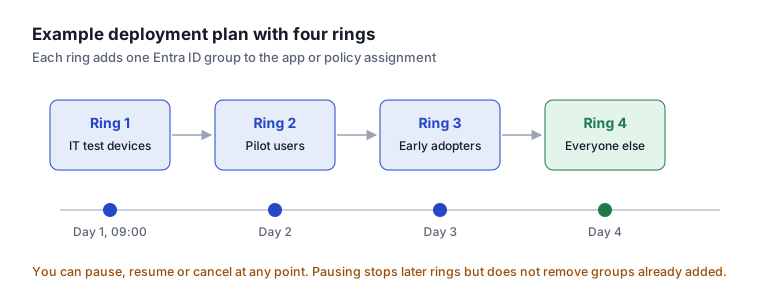
If you have ever pushed a bad policy to every laptop at once, you will like this one. Intune now has Deployments, a public preview feature that releases a single app or policy through a series of rings, one group at a time, on a schedule you set.
Until now most of us did this by hand. Assign to a pilot group, wait, add the next group, wait again. Deployments automates that.
What you can deploy
- Win32 apps and Enterprise App Catalog apps
- Settings catalog policies
- Endpoint security policies
It only works for Windows 10 and later, one payload per deployment, and the app or policy must already exist in Intune.
Where to find it
Devices > Manage devices > Deployments
There are two parts. A deployment plan is a reusable template of rings. A deployment applies a plan, or a one off set of rings, to a specific app or policy.
Step 1. Create a deployment plan
- Go to Deployments > Deployment plans and select Create plan.
- Give it a clear name, such as
Standard 4 ring rollout. - Choose the platform, then select Add rings.
- Add your rings. A common pattern is IT test, pilot, early adopters and everyone else.
- Assign one Entra ID group to each ring. Every ring needs at least one group.
- Set the wait time between rings. The minimum is one hour. For most changes I would use one day, and longer for anything touching sign in, VPN or security agents.
- Add any exclusion groups. These apply to every ring.
- Add assignment filters and scope tags if you use them, then review and create.
Changes you make to a plan later only affect new deployments, not ones already running.
Step 2. Create a deployment
- Go to Deployments and select Create.
- Name it after the change, for example
Chrome 141 rolloutorBitLocker policy v3. - Choose the payload type, select Add payload and pick the app or policy.
- On the schedule page, choose Load deployment plans and pick your plan. You can also build rings just for this deployment.
- Set the start date and time, review, and create.
Step 3. Watch it and step in if needed
Open the deployment to see which rings have been activated. From there you can pause, resume or cancel.
You can also track it in the audit logs.
Tenant administration > Audit logs
Filter on the Deployment category with actor type System. A finished deployment shows as Completed.
Things that will catch you out
This is a preview, and some of the behaviour is not what you might expect.
- Rings advance on time, not on success. Intune does not check whether the first ring installed cleanly before moving to the next. You still need to watch the results and pause if something looks wrong.
- Pausing does not roll back. Pause and cancel stop future rings from starting. Groups already added by earlier rings stay assigned. To undo, remove those assignments from the app or policy yourself.
- Required only. Apps can only be deployed as Required. Available and Uninstall are not supported.
- Policy types are limited to Settings catalog and Endpoint security.
- You cannot edit a running deployment. After creation you can only change the name and description. To change rings or timing, cancel and create a new one.
- One deployment per payload. The same app or policy cannot be in two scheduled or active deployments.
- All users and All devices must sit in the last ring on their own. When that ring activates it replaces earlier Required include assignments. Exclusions stay.
- Group collisions pause the deployment. If a ring's group is already assigned to the payload directly, the deployment stops with an error until you sort it out. A deleted group does the same.
- Direct edits win. If someone changes the payload assignments by hand, that takes priority over the deployment.
- Enterprise App Catalog automatic update is not supported, although supersedence is.
Permissions
The admin running deployments needs these Intune role permissions.
- Deployment plan with Create and Read
- Mobile apps with Read and Assign, for app deployments
- Device configurations with Read and Assign, for policy deployments
If you use Multi Admin Approval, a deployment waiting for approval will not show in the list until it is approved.
Is it ready for production?
For apps and low risk policies, yes, I would start using it now. It is still better than doing rings by hand, as long as someone is watching each ring. For security baselines and anything that could stop people signing in, I would wait until it can check success before moving on, or keep the gaps between rings long.